
Peers
Manage BGP-LS peers from the Prelude TE web UI — create, edit, enable, disable, and remove sessions.
Peers are the BGP-LS speakers Prelude TE maintains sessions with. Every peer you declare contributes to the consolidated topology, and its state is visible in real time in the web UI.
This page walks through the peer life cycle from the UI. For the end-to-end first install, see Getting Started / First peer.
The peers list
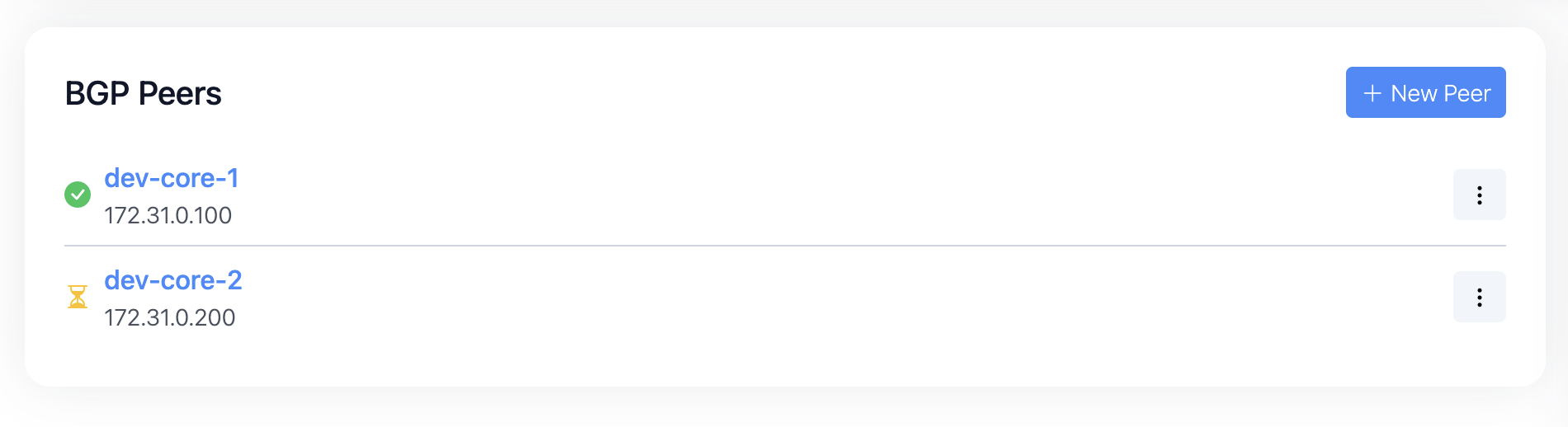
Open Dashboard from the left navigation. The peers list shows one row per configured peer with:
- Name — the friendly label you gave the peer.
- State — current BGP session state, colour-coded
(
establishedis green, transient states are amber,idleis grey). - Peer address and Peer AS — the remote side of the session.
- Counters — messages received, messages sent, updates received since the session was last established.
- Enabled — whether the engine attempts to maintain the session at all.
The list updates live: when a state changes or counters tick, the table refreshes without a manual reload.
Adding a peer
Click New peer at the top of the list. The form takes these fields:
| Field | Notes |
|---|---|
| Name | Required. Must be unique across all peers. |
| Description | Optional free text. |
| Peer address | Required. IPv4 or IPv6 address. |
| Peer AS | Required. Accepts 2-byte plain (65001), 4-byte plain (4200000001), or dotted notation (1.0). |
| Authentication | None or MD5. See Authentication. |
| Hold time | Optional. Default 90 s. Must be at least 3 s. |
| Keepalive time | Optional. Default 30 s. Must not exceed Hold time / 3. |
| Connect retry | Optional. Default 30 s. |
| Enabled | Default on — the engine starts the session as soon as the record is saved. |
Click Save. The new peer appears in the list with its state set
to idle. Within seconds, the state should move through the BGP
machine and settle on established if everything is configured
correctly on both ends.
Peer detail page
Click a peer's name in the list to open its detail page.
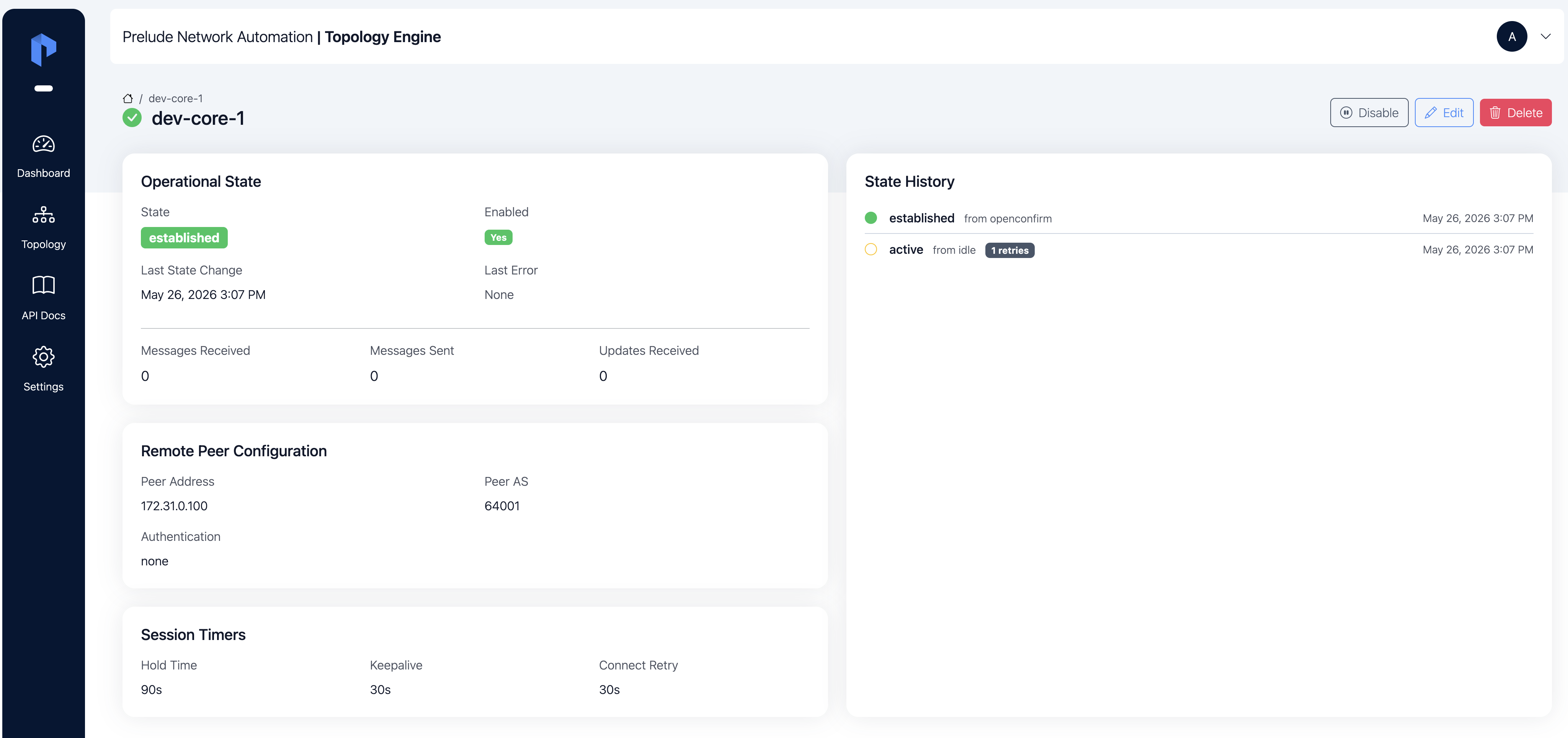
The detail page shows everything the list does, plus:
- Last state change — the timestamp of the most recent transition.
- Last error — the reason the session failed the last time it
fell out of
established, if any. - State history — a chronological log of every state transition with timestamps. Failed transitions carry the error reason returned by the BGP stack — the first place to look when a session flaps.
Editing a peer
From the detail page, click Edit to change the peer's configuration. The same fields as the create form are editable. When you save a change that affects the BGP session itself — peer address, AS number, hold/keepalive timers, authentication — the engine restarts the session so the new parameters take effect. Changes to purely descriptive fields (name, description) do not restart the session.
Enabling and disabling
Use the Enable / Disable toggle on the detail page (or the
inline toggle in the list) to stop or resume a session without
deleting the configuration. While disabled, Prelude TE does not
attempt to connect, the state shows as idle, and the topology
elements reported only by this peer drop out of the graph.
Disabling a peer does not free a license slot
Every peer record counts against the cap, enabled or not. To free a slot, delete the peer entirely. See Getting Started / Licensing.
Deleting a peer
From the detail page, click Delete. The engine closes the BGP session gracefully and removes the peer record. Any topology elements that were uniquely reported by this peer are withdrawn from the graph; elements still backed by at least one other peer stay in place.
Forcing a reconnect
If a session is stuck or you want to apply a router-side change without waiting for the connect-retry timer, Disable the peer and then Enable it again. This forces the engine to close the current session and start a fresh one on the next cycle.