
Licensing
The three license tiers, when you need to register your instance, and how to install a paid license.
Prelude TE ships ready to run. The Community tier is built in: no license key required to start. You install the engine, point it at your first BGP-LS peer, and it starts consolidating topology.
This page covers three things, in the order you will need them:
- The three license tiers and what they include.
- When you have to register your instance with the Arolo Portal.
- When you need a paid license and how to install one.
Tiers
Prelude TE ships with three license tiers. The active tier controls how many peers, domains, and nodes the engine will accept; every other feature — SR-MPLS, SRv6, Flex-Algo, outputs, the API — is available on all tiers.
| Tier | Peers | Domains | Nodes |
|---|---|---|---|
| Community | 2 | 1 | 20 |
| Standard | 2 | 1 | 100 |
| Premium | Unlimited | Unlimited | Unlimited |
A fresh install runs on Community by default. When you try to add
a peer, a domain, or onboard a node beyond what the active tier
allows, the engine blocks the operation and returns an error that
names the limit that was hit (for example,
license limit reached: 2/2 peers — install a license key for more).
Every peer record counts against the cap, including disabled ones. To free a slot, delete the peer record rather than disabling it.
Registering your instance
You can run Prelude TE for up to 3 months without registering. Use that window to install, evaluate, and roll out the engine at your own pace. The UI starts surfacing a warning 30 days before the deadline so the date does not catch you by surprise. After 3 months, an unregistered instance switches to a read-only period — peer sessions stop until you register.
Registration happens inside Prelude TE itself — no Arolo Portal account to create up front. As an administrator, open the web UI and go to Settings → Licensing, then click Register. Fill the short form (first name, last name, email, company) and submit. The engine talks to the Arolo Portal on your behalf, activates your Community license, and links the instance to a portal account it creates from the details you provided.
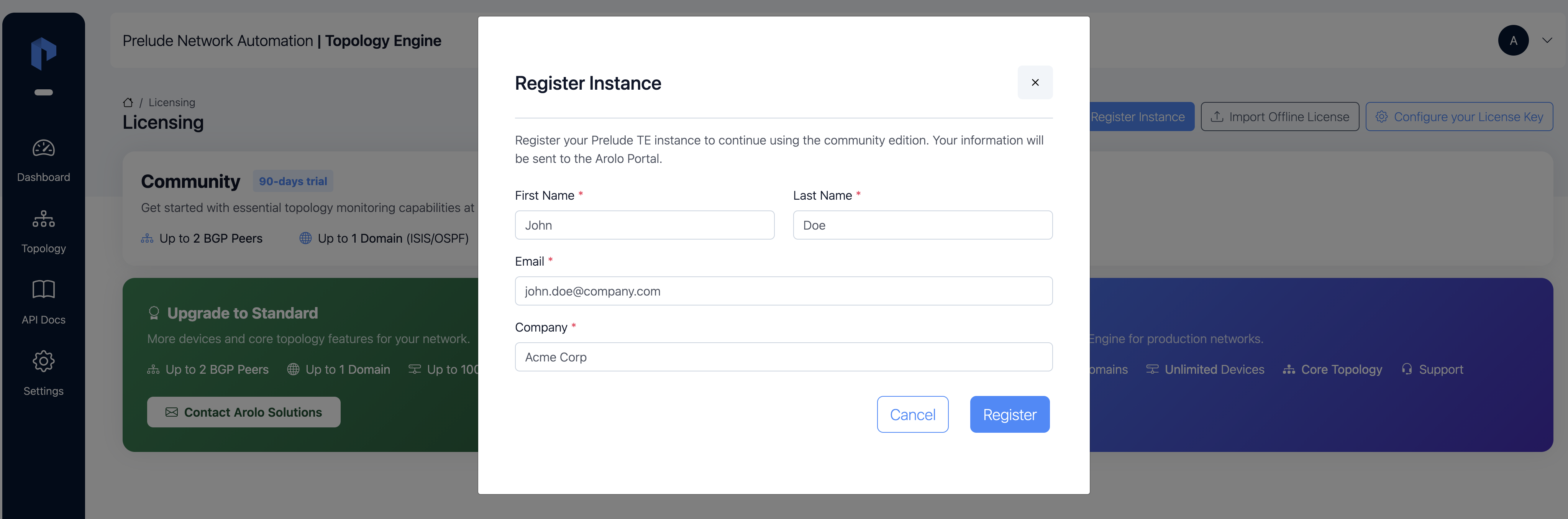
You can then sign in to the Arolo Portal at any time with the email you used to see your registered instances and to upgrade to a paid plan without reinstalling.
Paid license keys
Buy a license when you need more than Community allows — more peers, more domains, or more than 20 nodes. Contact the Arolo team at contact@arolo-solutions.com to get a license issued.
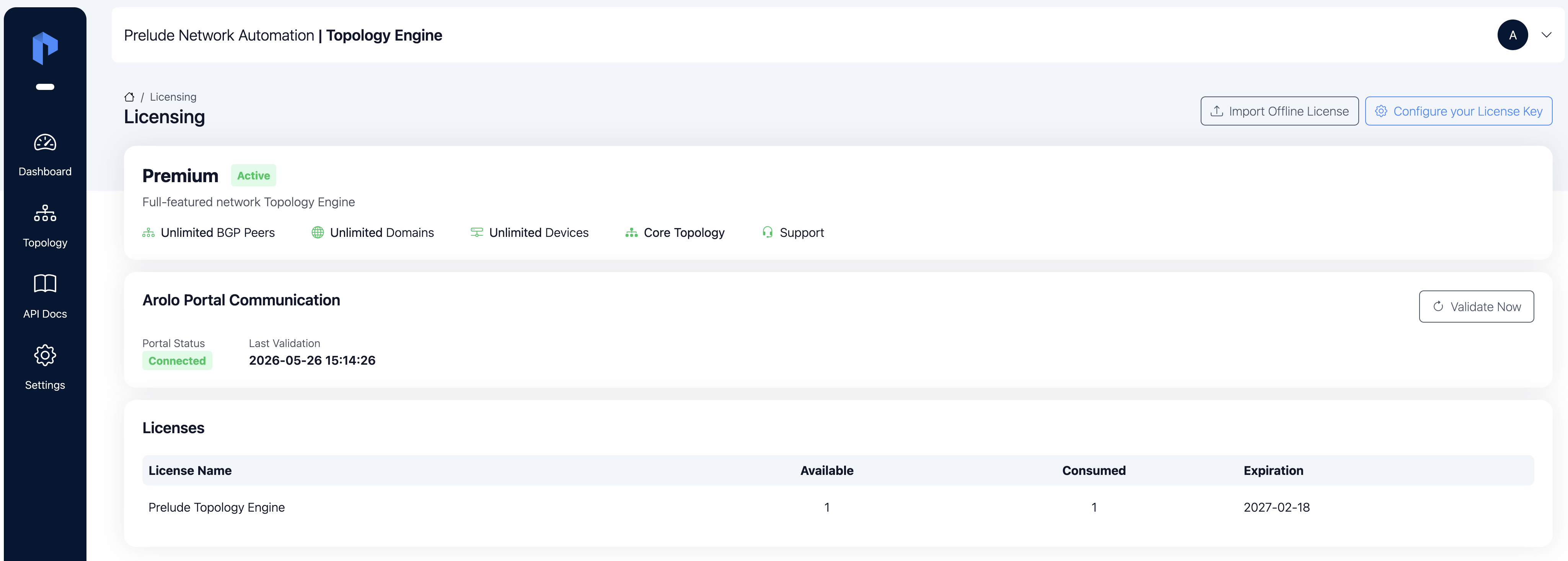
Once you have a license key, install it from the Licensing page in the web UI. On the next validation cycle the engine contacts the Arolo Portal, confirms the key, and raises the caps to your purchased quantities.
License expiry
A paid license has a fixed expiry date. The engine exposes the expiry on the Settings → Licensing page in the web UI and logs warnings on startup as the date approaches.
When a paid license expires, the engine enters a multi-stage wind-down so you have time to renew without dropping data:
- 30-day grace period — every BGP session keeps running exactly as before. Renew during this window and nothing changes on the data plane.
- 365-day read-only period — after the grace period, the engine disables active BGP sessions and stops consolidating new topology. The API still serves the last known graph and configuration so you can keep dashboards alive while you renew.
- Past read-only — the license is treated as fully expired. Renew or contact support.
Unregistered Community instances must register with the Arolo Portal within 3 months of installation. After that window, an unregistered instance enters the same read-only period described above: peer sessions stop, but the API keeps serving the last known graph and configuration so dashboards stay alive. Register the instance to resume collecting — see Registering your instance.
Next
With the right tier in place (or the Community tier confirmed), head to First peer to bring up your first BGP-LS session.