
Authentication
How to configure MD5 authentication between Prelude TE and your BGP-LS peers.
Prelude TE supports two authentication modes on each peer:
- None — the session opens without TCP-level authentication. Acceptable on a trusted lab network; not recommended for anything reachable beyond your collector subnet.
- MD5 — TCP MD5 Signature Option (RFC 2385). Both sides share a password; every TCP segment in the session carries an MD5 digest computed from that password.
Authentication is set per peer. You can mix modes across your fleet — for example, MD5 between Prelude TE and your route reflectors, and none on an isolated lab peer.
Configuring MD5
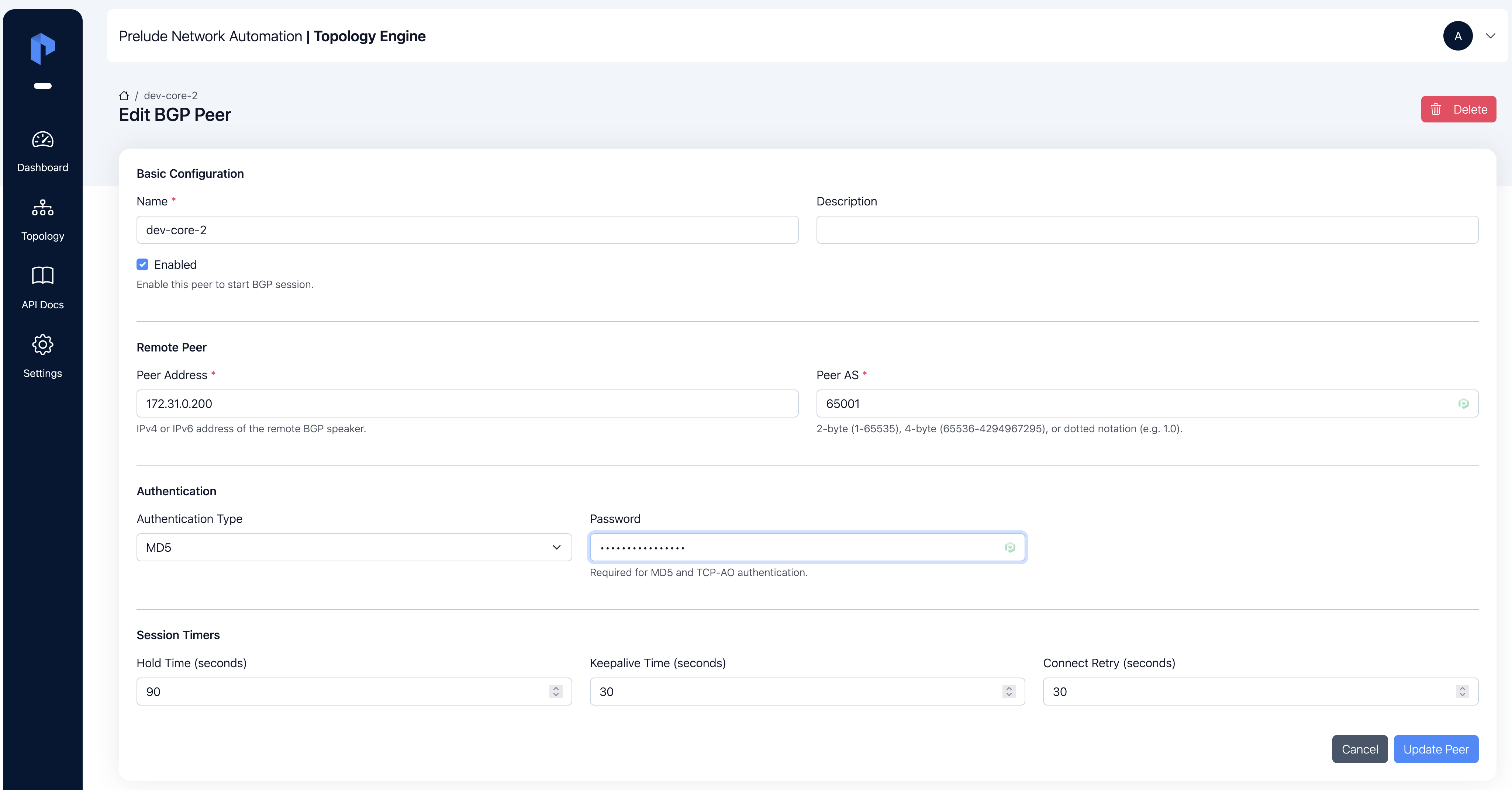
From Dashboard, open the peer's detail page and click Edit. In the form:
- Set Authentication to MD5.
- Enter the shared password in Auth password.
- Save.
Configure the same password on the router side. Both ends must match exactly for the session to establish — a mismatch fails the session at the TCP layer, before BGP OPEN, and shows up as a connection error in the peer's State history panel.
Password storage
Prelude TE stores the authentication password encrypted at rest in the database. The password is never returned in plain text through the UI or any export. To change it, enter a new value in the edit form; leave it blank to keep the existing password.
Common pitfalls
If the session refuses to leave active or connect, MD5 is the
most likely culprit. Check:
- Password match — copy and paste, do not retype, to avoid invisible whitespace.
- Both sides enabled — MD5 is asymmetric to configure but symmetric in effect: if only one side has it enabled, the session fails.
- Firewall — some firewalls strip the TCP MD5 option. If the session works without MD5 but fails with it, look at the network path before the password.