
Browse the YANG tree
Use the collector's YANG Tree Browser to explore OpenConfig and device-collected schemas, find the exact path you need, and read its type, config/state, and list keys — all in the web UI.
Before you can collect a gNMI or NETCONF leaf, you have to know its exact path. That path lives somewhere in a YANG model, and a model is rarely small. OpenConfig ships hundreds of modules; a single Cisco IOS-XR release carries a few thousand. The leaf you want is in there, under a container, under a list, under another container.
The usual way to find it is to clone a pile of .yang files and grep,
or to read a tree dump from pyang. Both work, and both keep you far
from the device the path has to match.
Prelude Collector has a YANG Tree Browser built in. It loads the embedded OpenConfig set and any schema the collector has pulled off your own devices, and it lets you expand the tree, read each node's type and metadata, and search by name. This tutorial walks the whole thing in the web UI. Plan on 15-20 minutes.
What you'll learn
- Open the YANG Tree Browser and load a module from the embedded OpenConfig set.
- Read each node: container vs list vs leaf, the leaf type, the list
key, and whether a subtree is config (
rw) or state (ro). - Search the tree by name to jump straight to a leaf like
oper-status. - Collect a device's own YANG over gNMI or NETCONF, then browse the vendor-native tree the box actually serves.
Prerequisites
- Prelude Collector v1.1.0 running, and you signed in to the web UI. See Installation.
- The embedded OpenConfig set is bundled with the build, so the first half needs no device.
- For the last step (browsing a device's own schema) you need one gNMI- or NETCONF-capable device added to the collector. Any platform works; this walkthrough uses a Cisco IOS-XR node.
Step 1 — Open the YANG Tree Browser
In the sidebar, open Browsers → YANG Tree. The browser has two inputs at the top: a Source and a Module.
- Source is the catalog to browse.
Embedded (OpenConfig)is always present. Below it you'll see one entry per device schema the collector has already pulled — more on those in Step 4. - Module is the YANG module within that source.
Leave the source on Embedded (OpenConfig), open the Module
dropdown, and pick openconfig-interfaces. Click Load Tree.
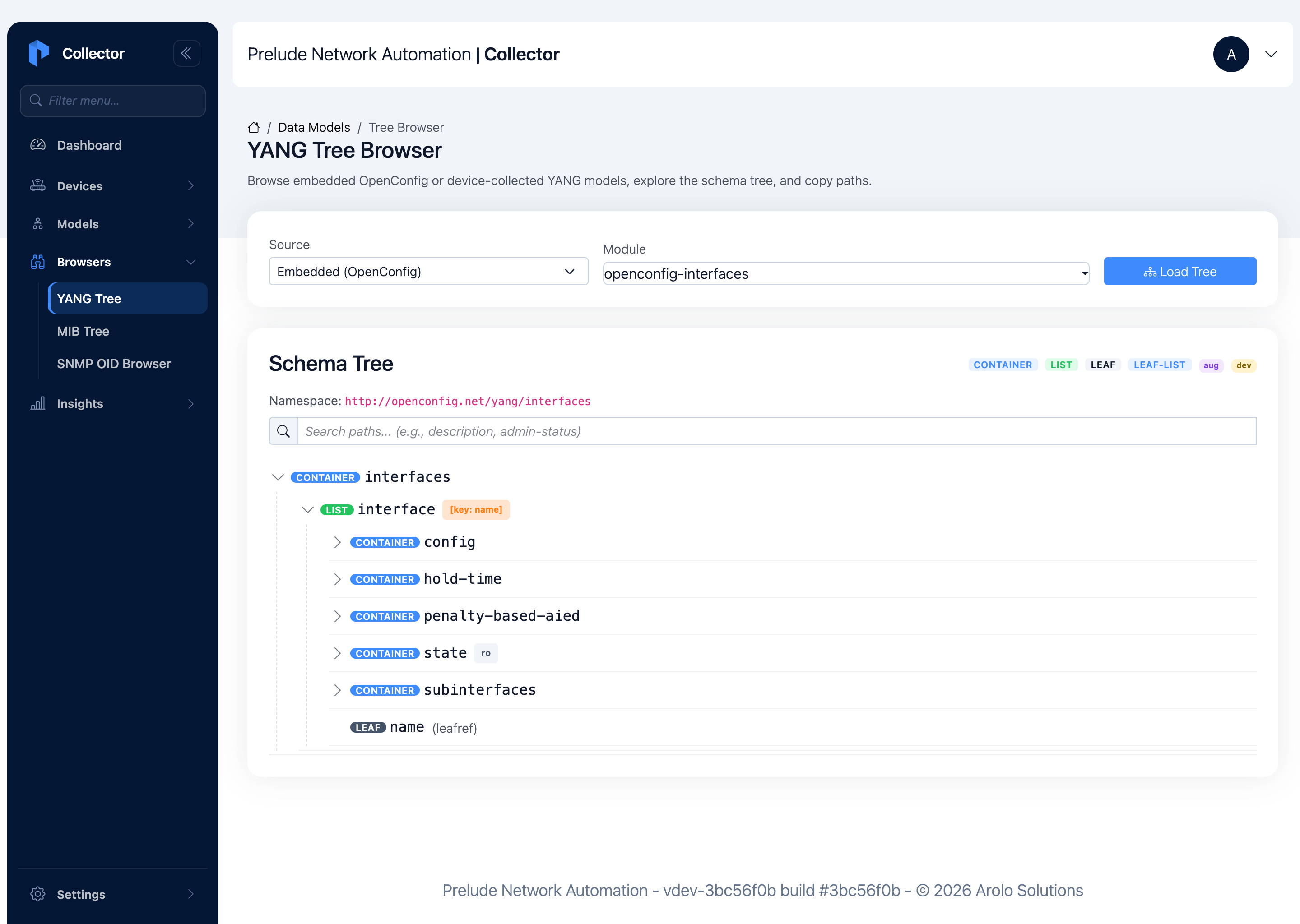
The tree shows the module's roots. The legend at the top right maps the colors: container, list, leaf, leaf-list, plus the aug and dev markers covered in Step 4.
Step 2 — Read a node
Expand interfaces → interface. A few things are worth reading off the
tree directly:
interfaceis a LIST keyed byname— the orange[key: name]badge tells you the path needs a key, so a real path looks like/interfaces/interface[name=GigabitEthernet0/0/0/0]/....configvsstate— expandstateand you'll see a smallrobadge on it.stateis read-only operational data;configis read-write intended config. When you collect telemetry, you almost always wantstate.- Leaf types — expand
state → countersand every leaf shows its YANG type next to the name:in-octets (counter64),oper-status (enumeration), and so on. The type tells you what the device will actually stream.
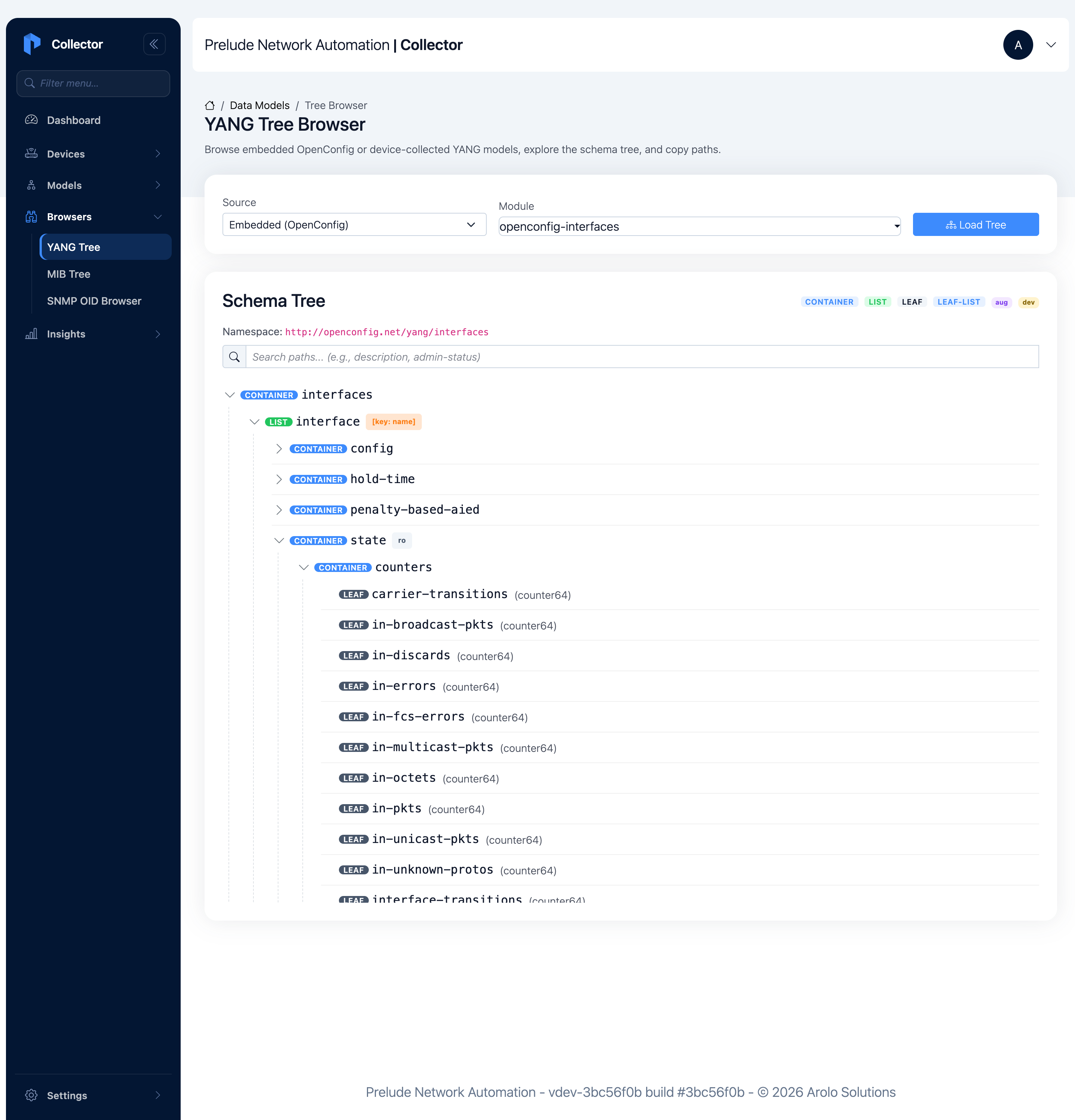
This is the same path you'd bind in a Model mapping. Reading the type
here is how you know in-octets is a counter (so it needs a
rate() downstream) and oper-status is an enum (so its values are
UP / DOWN, not numbers).
Step 3 — Search instead of scroll
You rarely need the whole tree. Type a name into the Search paths box and the tree collapses to the matches, keeping each match's parent chain so you can see where it lives.
Search for oper-status. The browser highlights every oper-status
leaf and shows its full path — one under interface/state, another
under subinterface/state. Each keeps its (enumeration) type.
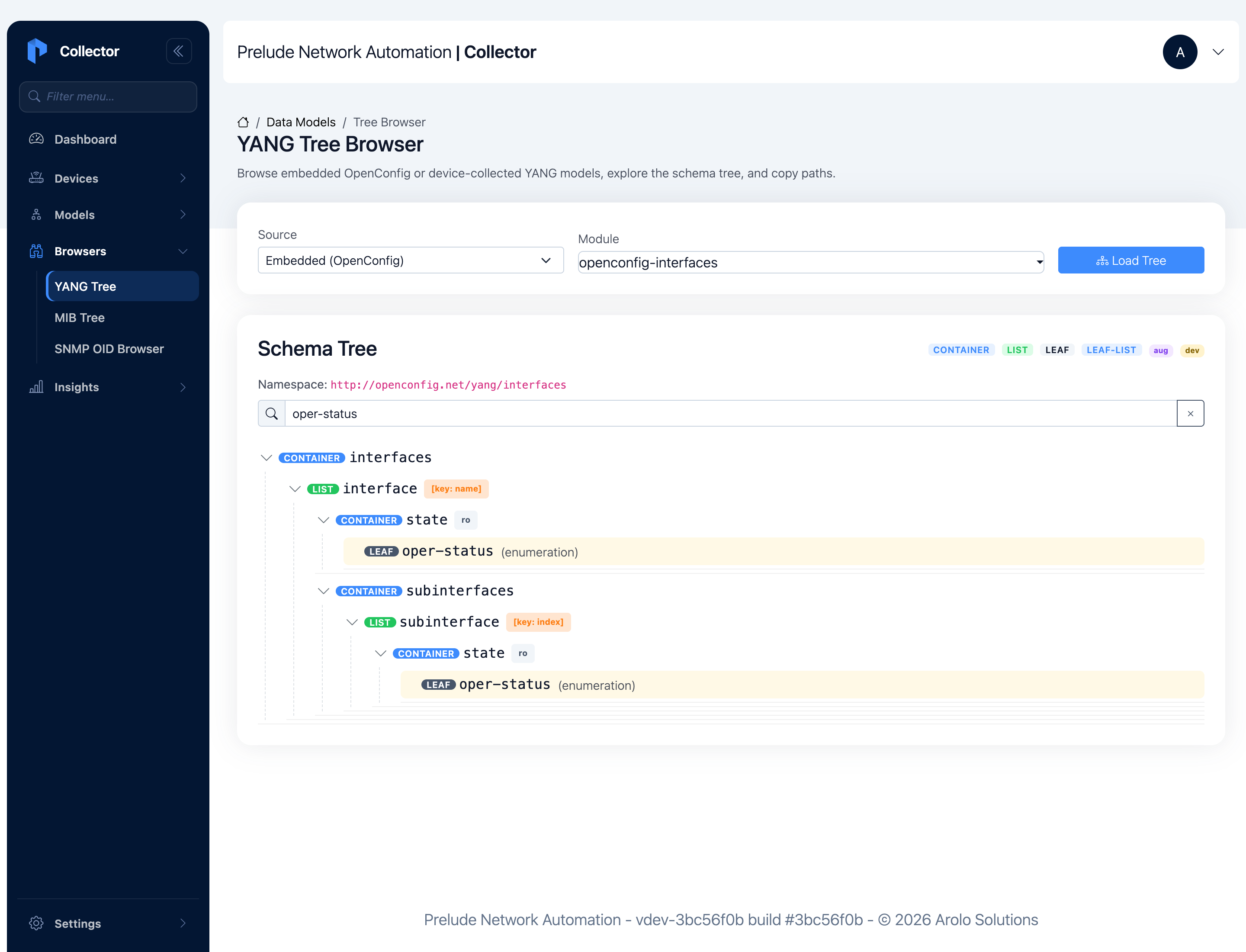
Search matches names and descriptions, so a query like mtu or
counters works the same way. Clear the box to return to the full
tree.
Step 4 — Browse a device's own schema
OpenConfig is the common baseline, but vendors deviate from it and add native models of their own. To browse the schema a specific box actually serves, the collector pulls it from the device first.
Open Settings → YANG Manager. The Collected Catalogs table lists every schema the collector has already pulled, with the source device and a module count.
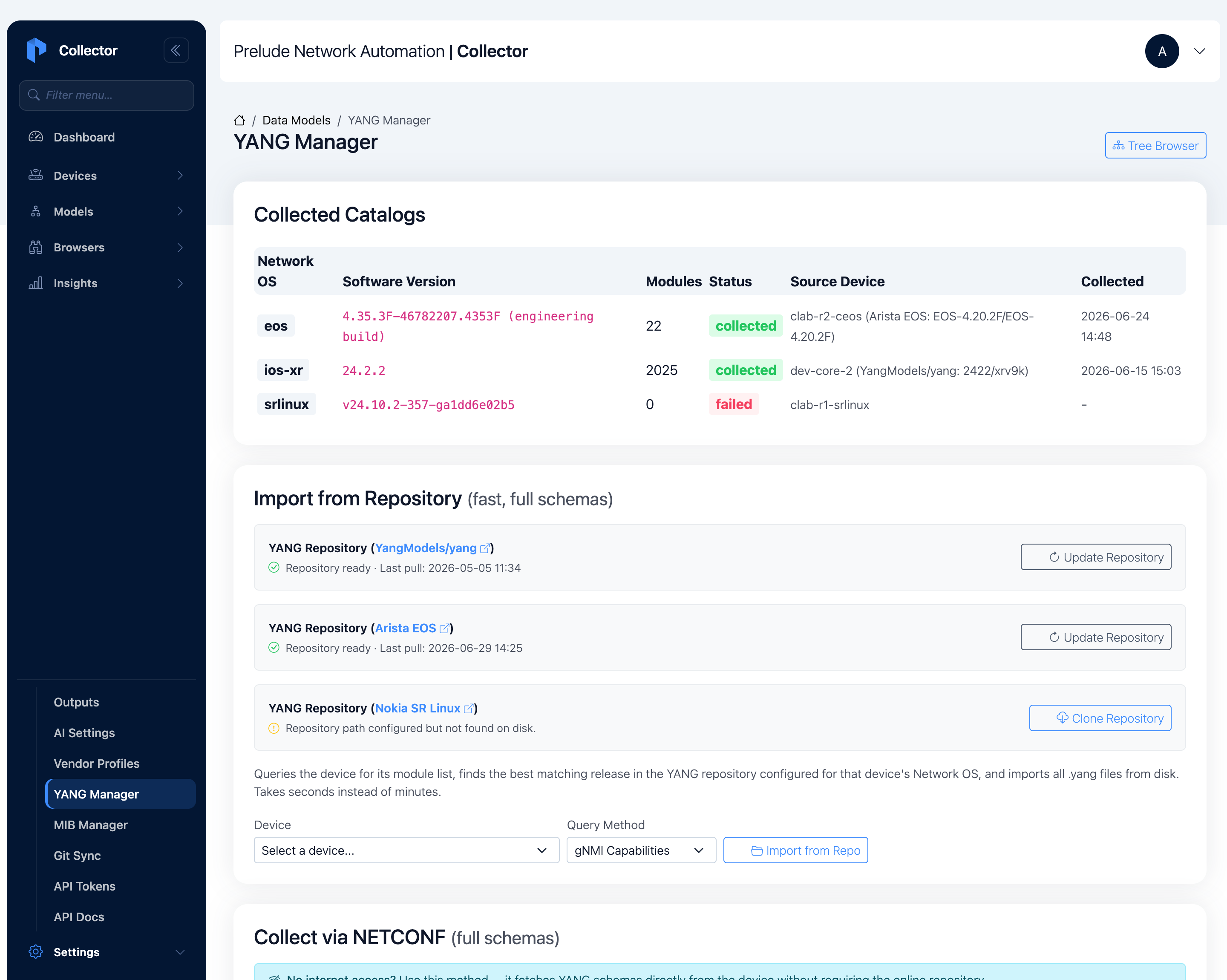
To collect a new one, the collector gives you two routes:
- Import from Repository — pick a device and a query method (gNMI Capabilities or NETCONF), and the collector asks the device for its module list, then pulls the matching full schemas from a YANG repository on disk. This is the fast path and gives you complete modules.
- Collect via NETCONF — the collector issues
<get-schema>RPCs and reads the schema straight off the device. Use this when the box has no matching repository, or in an air-gapped network.
Once a catalog is collected, go back to Browsers → YANG Tree,
switch the Source to that device's catalog (for example
ios-xr 24.2.2), pick a native module like Cisco-IOS-XR-ifmgr-oper,
and load it.
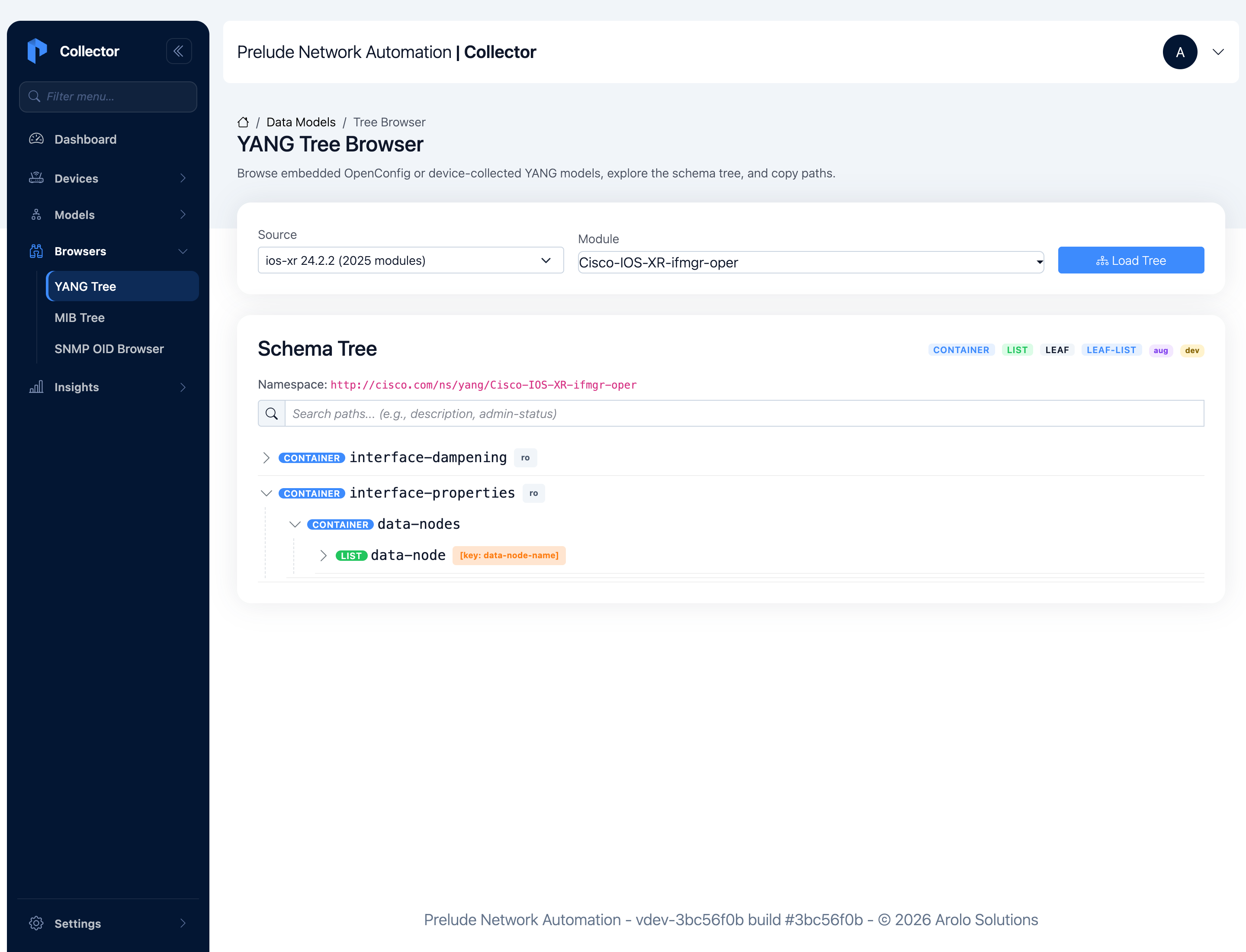
This is the vendor's own tree — note the cisco.com namespace and
paths like interface-properties/data-nodes/data-node. Where a vendor
augments or deviates from a standard module, the browser tags the
affected nodes with the aug (augmentation) and dev (deviation)
markers from the legend, so you can see exactly where that platform
departs from the baseline.
Verify it works
You're done when:
- [ ] Browsers → YANG Tree loads
openconfig-interfacesfrom the embedded source and shows the tree. - [ ] Expanding
interface/state/countersshows leaf types likein-octets (counter64). - [ ] Searching
oper-statusfilters the tree to the matching leaves. - [ ] Settings → YANG Manager lists at least one collected catalog, and you can load one of its modules in the Tree Browser.
Where to next
- Interface counters across vendors — take the paths you just found and bind them into a normalized, multivendor Model.
- Browse the SNMP MIB tree — the same idea for SNMP: find the OID before you walk it.